
Yunus Emre
Software Engineer
Power Automate Oracle Database Connection
When you enter the Power Platform world, the first stops you encounter are usually SharePoint lists or Dataverse. However, if you are developing an enterprise-level project, you may be required to use Oracle Database as your data source.
Because Oracle connectivity is one of the ecosystem's niche areas, standard Microsoft articles can sometimes be superficial. Due to limited resources, artificial intelligence can mislead you (at least for now).
Power Automate Gateway Connection
You need a robust bridge to access Oracle tables hosted on your local server via the cloud. In the Power Platform architecture, this bridge is called On-Premise Data Gateway.
In the Power Automate interface, navigate to the Network Gateways section under the "Data" başlığı altındaki “Ağ geçitleri” heading. Click the “New network gateway” button, and the system will automatically download theGatewayInstall.exefile for you.
You must install the downloaded file on the server where your Oracle database is located (or on a machine with 24/7 access to that server). When you sign in with your Office 365 account during installation, the gateway will automatically match your cloud environment and appear as “Online” on your Power Automate screen.
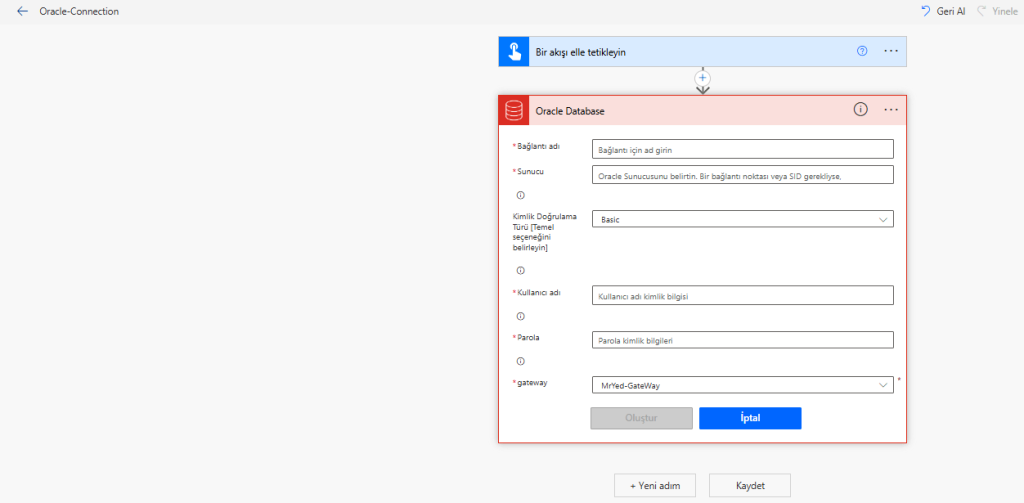
Now that the gateway is ready, we can knock on Oracle's door. When you create a new flow in Power Automate and add the "Oracle -> Get Rows" action, you will be asked to configure a connection. You can set up the connection as shown in the table.
| Connection Name | Server | Username | Password |
| OracleConnection | oracledb:1521/BT | powerplatform | *** |
You can also enter the server section as 1.1.1.1:1521/BT, i.e., in the IP:1521/SID format. Select the gateway we created in the gateway section. Once you enter all the information and click “Create,” if your permissions are complete, you will see a list of your Oracle tables displayed in front of you.
Note: You can also use the same gateway and connection on the Power Apps side.
Adding Data to Oracle Database with Power Automate
The Oracle connector in Power Automate provides us with standard actions that we are familiar with from SharePoint, such as “Add Row,” “Get Rows,” and “Filter.” However, when an enterprise Oracle architecture is involved, these standard actions may sometimes fail to deliver the expected performance or cause silent errors in the background.
In my tests, I observed that the standard “Insert Row” action appeared to add the data but actually logged an error in the Oracle logs. Especially if your database has date fields that use TimeStamp standard actions may not convert this format correctly. If you are only sending simple text (String) or numbers (Integer), standard actions may work; however, for complex data types, writing directly to the table using the “Execute Oracle Query” action is a much safer and more efficient method.
Sample query template;
INSERT INTO "POWERPLATFORM"."ORNEKTABLO" (
    "ID",
    "TIP",
    "VKN",
    "REQUESTNO",
    "SON_DEGISTIREN",
    "ISLEM_TRH"
)
VALUES (
    triggerOutputs()?['body/ID'],
    'triggerOutputs()?['body/Tip/Value']',
    'triggerOutputs()?['body/VKN']',
    if(empty(triggerOutputs()?['body/IstekNo']),'null',triggerOutputs()?['body/IstekNo']),
    'triggerOutputs()?['body/Editor/DisplayName']',
    TO_TIMESTAMP(
        'formatDateTime(utcNow(), 'yyyy-MM-ddTHH:mm:ss.fffffff')',
        'YYYY-MM-DD"T"HH24:MI:SS.FF7'
    )
)
To avoid errors when sending queries directly to Oracle, you should pay attention to these 5 critical rules:
- Numerical Values: Do not use single quotation marks when sending numbers. (e.g.,
ID = 101) - Text (String) Values: Be sure to enclose text in single quotation marks. (e.g.:
'Deneme Verisi') - Date Format (TimeStamp): This is where most mistakes are made. You should send the dates using the
TO_TIMESTAMPfunction that Oracle understands and format them withformatDateTimeon the Power Automate side. - Semicolon (;) Trap: Never add a semicolon at the end of your query. If you do, the flow may not throw an error, but you will see that the data is not processed into the database.
- Commit Condition: After writing operations, you must send the
COMMITcommand with a new query step to make the data permanent.
Power Automate and Oracle CLOB Error
When you want to store a file or long text in an Oracle database, you typically use the CLOB column type. However, when you try to send file content (such as a PDF or image) in Base64 format to these fields via Power Automate, standard SQL queries may return errors such as “insufficient buffer” or “string literal too long.”
The most effective way to overcome this issue is to use parameterized queries instead of writing the data directly into the SQL statement. Parameterized queries both prevent SQL injection risks and allow Oracle to process large data (Base64) more easily.
The : symbol you use in the query tells Oracle that “this value will come as a parameter.”
INSERT INTO "POWERPLATFORM"."DOSYALAR" (
    "ID",
    "SIRA_NO",
    "DOSYA_BINARY"
)
VALUES (
    :dosya_base64_id,
    :sira_no,
    :dosya
)
When you write this query in the “Execute Oracle Query” action, Power Automate will automatically create input fields for these variables in the lower section of the action.
Converting a file's content to Base64 within Power Automate is quite simple. You can convert the content using the following expression: base64(outputs('Dosya_İçeriğini_Al')?['body'])
The “:” operation in the example query means that this value will be sent as a parameter. When you write this query, these variables will be requested from you in the lower part of the action. You can send your data there. In Automate, we can easily convert the file we receive with the code base64(outputs(‘Get_content’)?[‘body’]) to base64 format.
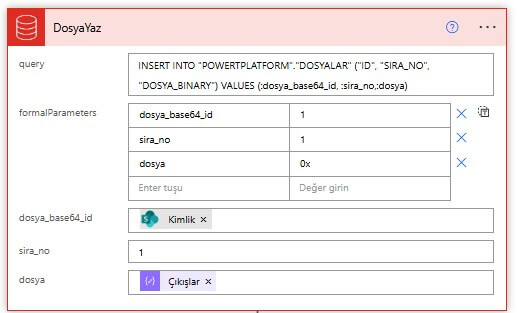
Note: If the base64 length exceeds 4,000,000, you cannot send the data. This is Power Automate's string sending limit. In this case, you can choose methods such as reducing the file size or sending it in parts.
Critical Limit: 4,000,000 Character Limit
I need to mention a very important limitation here: Power Automate's string sending limit is approximately 4 million characters. If thelengthof the Base64 data you are trying to send exceeds this limit, your stream will return an error. In this case, you should follow these steps:
- Reducing File Size: Compress images or reduce PDF quality.
- Partial Shipment: Write procedures that split the file into parts and merge them on the Oracle side.
- Link Submission: The file's SharePoint link can be sent to the database.
Deleting Data from Oracle Database with Power Automate
I used Query instead of the standard action for the data deletion (Delete) process. You can try the standard action. Since Power Platform is a constantly evolving platform, some errors may have been fixed with updates. However, if you encounter an error, it's not a big problem. You can perform the deletion process using the following Query.
DELETE FROM POWERPLATFORM.ORNEKTABLO WHERE ID = triggerOutputs()?['body/ID']Critical Reminder: After this query, be sure to add another “Execute Oracle Query” step and write only
COMMITinside it. Otherwise, your data may remain locked or may not be saved at all.
RESULT
We have detailed the processes of Data Insertion and Data Deletion in this article. You should remember that the same logic applies to Update operations. The Manual Query and COMMIT discipline we used in the INSERT INTO structure should be used in the same way.
UPDATE "POWERPLATFORM"."ORNEKTABLO"
SET
    "REQUESTNO" =
        int(triggerOutputs()?['body/IstekNo']),
    "ISLEM_TRH" =
        TO_TIMESTAMP(
            'formatDateTime(utcNow(),'yyyy-MM-ddTHH:mm:ss.fffffff')',
            'YYYY-MM-DD"T"HH24:MI:SS.FF7'
        )
WHERE
    "ID" = 10;
Sometimes, the solution to an error you've been struggling with for hours may actually lie in a single ; character accidentally added at the end of the query. Most errors encountered in Oracle connections stem not from structural issues, but from small yet critical details like this. When you're unsure exactly where the error is coming from, the “real-world experiences” I've shared can save you time.
In summary; When you establish the correct connection between Oracle and Power Platform you can leverage the power of your local data combined with the flexibility of the cloud. You can share any errors you encounter in this area in the comments.
You can quickly connect to your server by setting up a gateway from the gateway section. Simply log in to the gateway with your Office 365 credentials.
When you send the data you will send in Power Automate as a parameter using the “:” expression, the clob error will be resolved. Here, you should also pay attention to Power Automate's data limit.
